Special Features
From within the Appointments module you are able to doing the follow:
Add one appointment at a time
The list view allows to do many things not allowed on other screens. 
[click here to enlarge this image]
To add just one time slot to a provider's schedule, say for an emergency, click the green arrow and you get thedialog below. You cannot change the provider but you can change the dateand time. To double book just click OK!
Making slots unavailable
To make any time slot in this list unavailable, uncheck  . This turns the slot color yellow. To make an appointment available check the
  box.
box.
To make all appointments in this list available or unavailable, click the appropriate button at the bottom of the Av column and confirm you action at the confirmation dialog.
Deleting time slots
There is a fundamental difference between cancelling an appointment and completing deleting a record, which is why it is discussed here. To completely delete an appointment slot from the database so that is goes away forever click the trash can icon at the end of the appointment line and confirm your action. Only users with delete privileges are allowed to do this!
Dialing patient's appointments
Note: This feature does not work in Macintosh OSX!
To make your life very easy, you can use the list viewto help you confirm appointments. Next to each patient's name in theList View there is the telephone icon  . This is how you must set up your computer and telephone for this to work!
- Plug BOTH your computer's modem and regular telephone into an analog phone line such as used with your faxmachine.
- To dial the phone, click the icon. A dialog will appear confirming your action. Proceed. Youwill hear the phone being dialed through the computer's speakers.
- When someone answers the phone immediately pick up the telephone, click the Hand up button on the dialing dialog and start talking!
The Single Day View
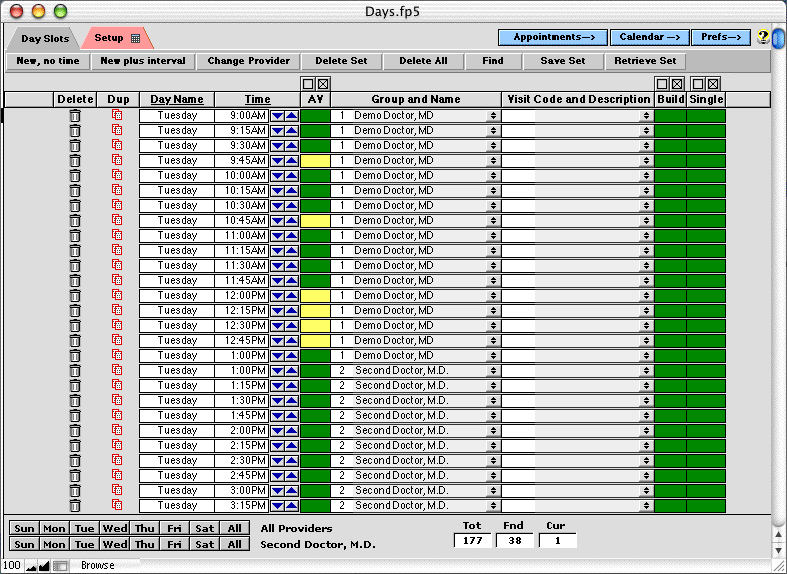
This view shows only one day at a time and therefore the scrolling list shows much more detail for one day than you get from the week view.
Time stamp arrival and room assignments
Both the Single Day view and the List View havethe ability to record room assignments (the "R" column), as well as thetime a patient was put In a room, was Seen and was Out of the room.
- The "R" field is for the room number and has its own editable pop-up list.
- On the List view there was room for small clock
 icons that you can click to fill in the time. On the Single Day view screen you need to click into the field and then click either In, Seen or Out buttons to fill in the time.
Adding a block of appointments to one day
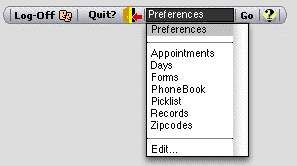
There are several special functions associated with the Scripts menu located across the top of the screen.
The Add Slots feature when selected gives you the dialogabove right. Here you can add slots to any day for the currently selectedprovider. This comes in extremely handy if a provider wants to open upa half day that previously was unscheduled. Here, we are adding appointmentsfrom 1:00PM to 4:00PM in 15 minute intervals. If you need help withthis feature click the Help button right on the dialog!
Removing or cleaning up appointment slots
Because of the flexibility of the Appointment scheduler, it is easy to make mistakes when you build you schedule or add slots to this database. To help you clean up this occasional mess, we have provided a "Tool Box", that when selected from the Scripts menu gives you the following choices...


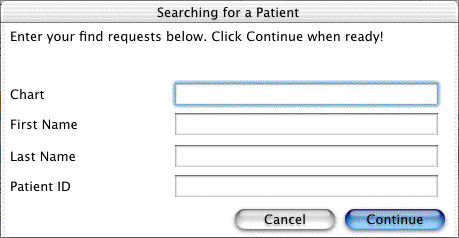
Once you select OK you are given the dialog on the rightwhich allow you to enter search parameters looking for the mistaken appointments. Probably the most important field here is the Date Created field. When appointments are added to this database, this field fills with the datethey were added. Therefore, if you made the mistake TODAY you would put today's date in that field. Of course, you can search using any combination of fields in this dialog!
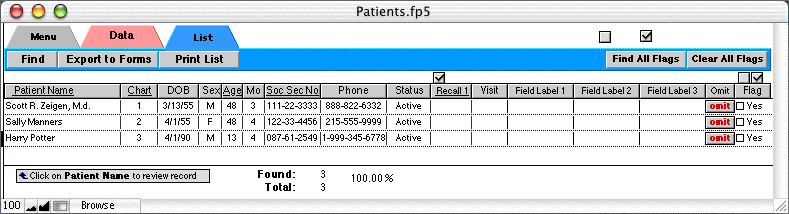
Once you find you appointments you are presented with a list, such as the one below. Before you delete, it is wise to scroll through the list for any records you want to remove from this list! Click the Omit button removes them from the list.
- To forget the whole process click Forget Process at the lower right
- To change any of the other parameters for the entire list, click on one of the icons across the top. For example, if you wanted to make all 72 of these appointments for the Main Doctor, MD you would click once onto one of his records and then the replace icon
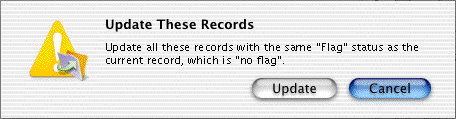
 above that column. You would then confirm your action at the dialog box that appears! The same functionality occurs with the appointment Time and Visits columns.
 - Once you are done click Continue on the side. If you are NOT deleting records click














 button and confirm your action at the dialog box.
  button instead.
 ).
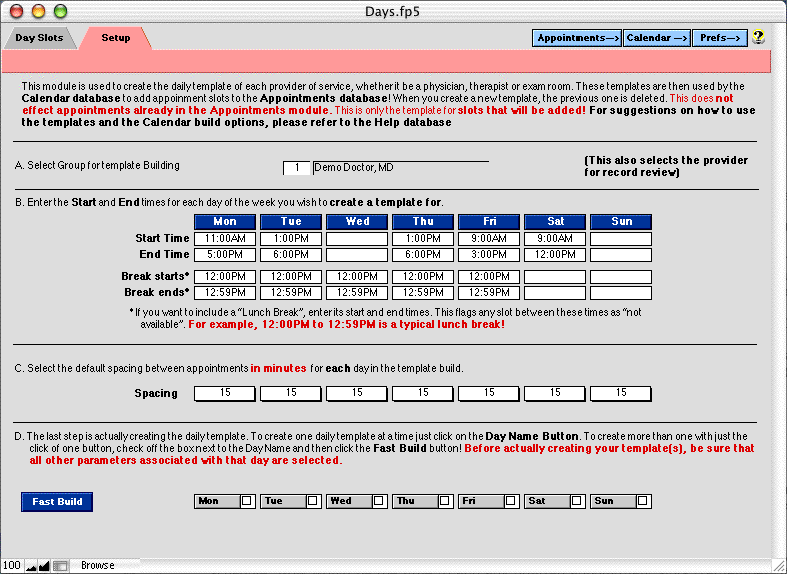
). . This will do each day one at a time (it will warn you it’s about to do each day and give you the option to cancel). This process only creates the list of appointments slots that will be used later to actually create appointment slots in the Appointments module.
  , otherwise click
  to make then all un-available.


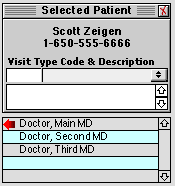


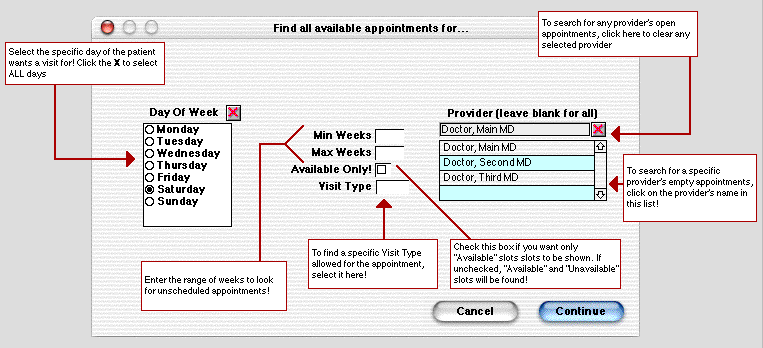
 pointing to the open slot to use it for your patient/client (wecall this the Appointment Dialog screen).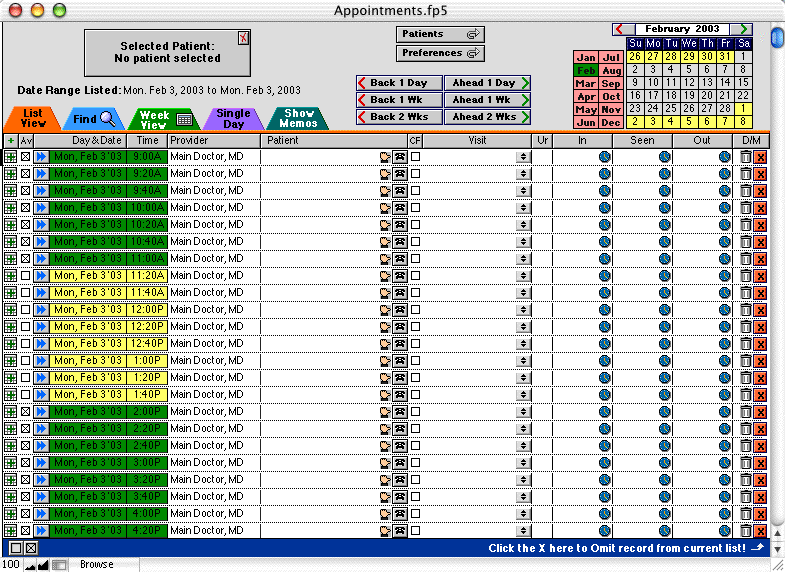
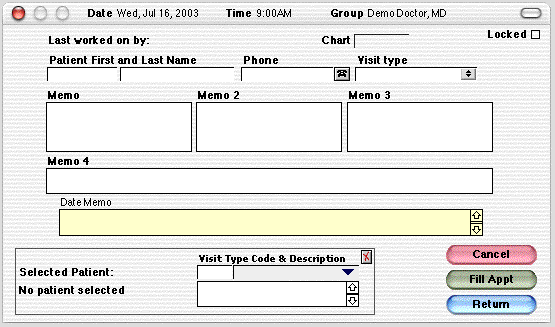


 pointing to the slot. The dialog below appears. Click Fill Appt to use the Selected Patient. You can then enter information in any of the four memo fields. Click Cancel to clear the appointment and memorize the patient in the Selected Patient section.


